

Microsoft 365 and Google Workspace
Company sign-in
Require Microsoft, Google or your own identity provider for sign-in, set session limits and let people join from your directory.
Who can do this: Owner
Steps
- Add a passkey to your own account first. Requiring single sign-on needs one, as the way back in.
- Open Settings, Sign-in policy, and choose Change the policy. Only an owner can change it, and it needs a recent sign-in.
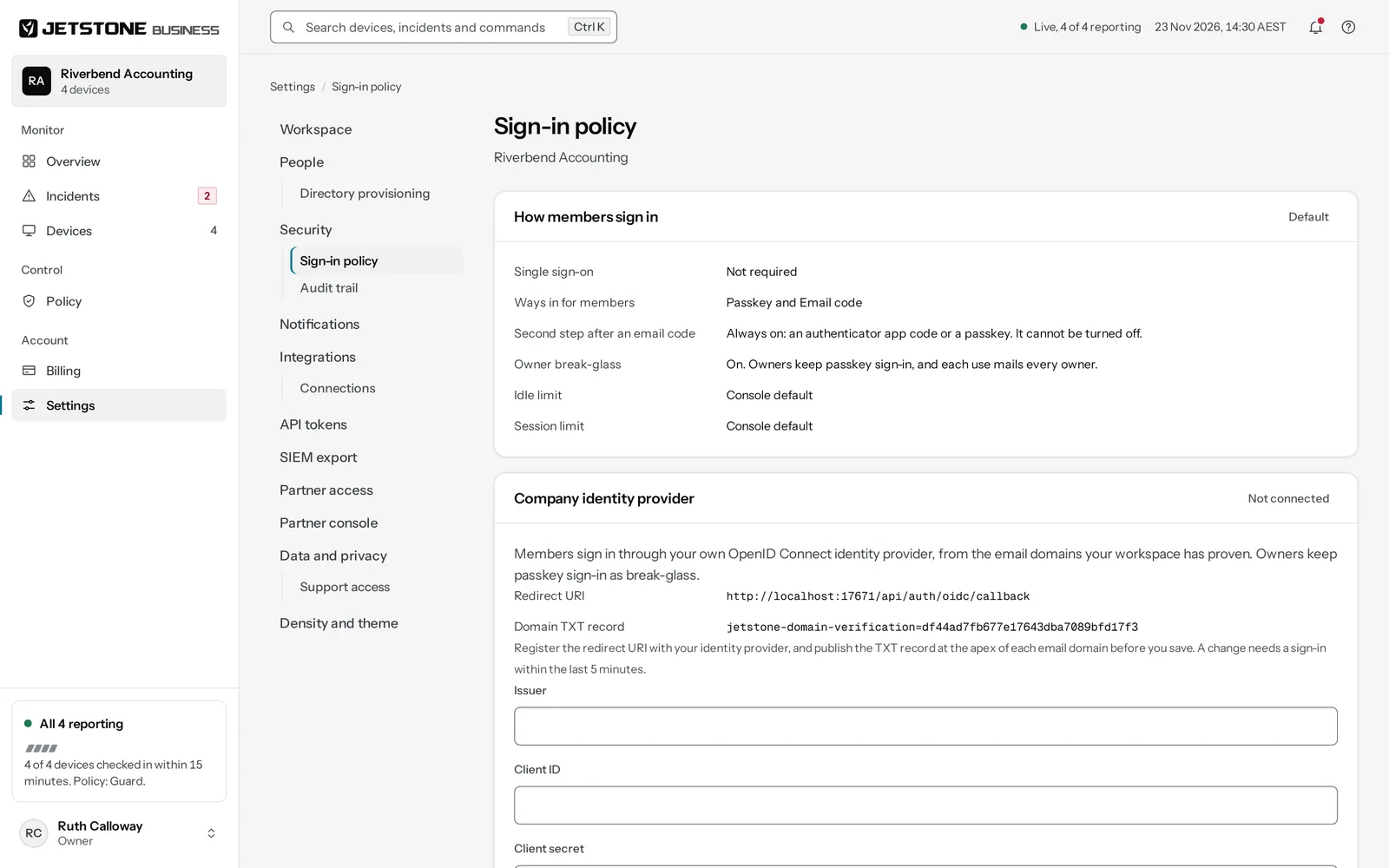
Sign-in policy: single sign-on, the company identity provider and session limits - Under Single sign-on choose Not required, Require Microsoft or Require Google, and list the accepted directory ids or domains.
- Owner break-glass keeps passkey sign-in for owners while single sign-on is required, and each use mails every owner.
- Set the Idle limit and Session limit. The idle limit cannot be longer than the session limit.
- Optionally let people from the accepted directories and domains join as viewers on first sign-in. Choose Save the policy.
- To add, change and remove members from Microsoft Entra ID or Okta, open Settings, Directory provisioning, choose Make a token and paste the SCIM URL and the token into the directory. Give each pushed group a role under Groups and roles.
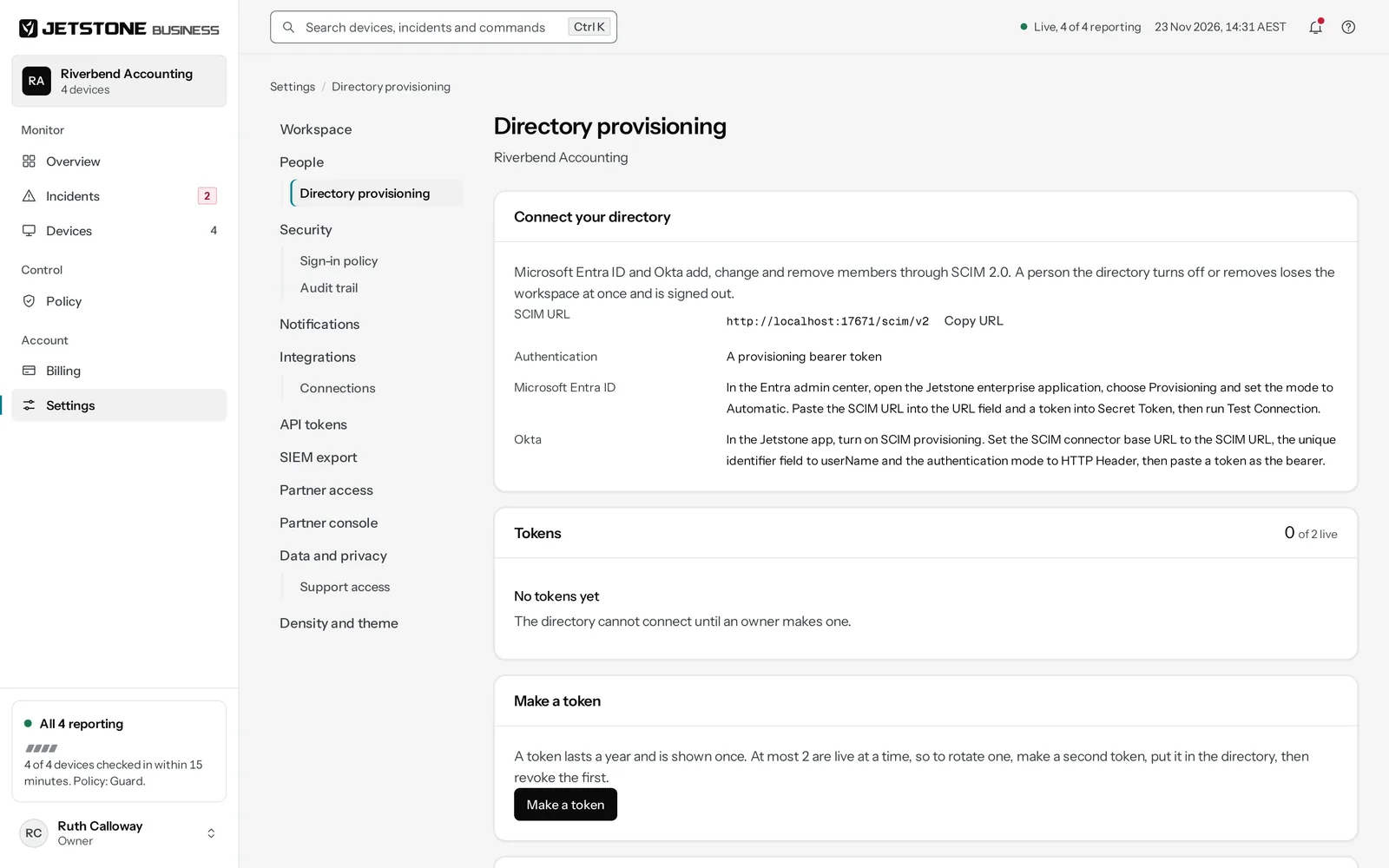
Directory provisioning with SCIM
A person the directory turns off or removes loses the workspace at once and is signed out.
Still stuck
Email support@blackshard.com.au with your workspace name and the guide you were following.