

First run
Protect this phone
Install Jetstone, run the first checks and turn on web protection, in the order the app asks.
- 1
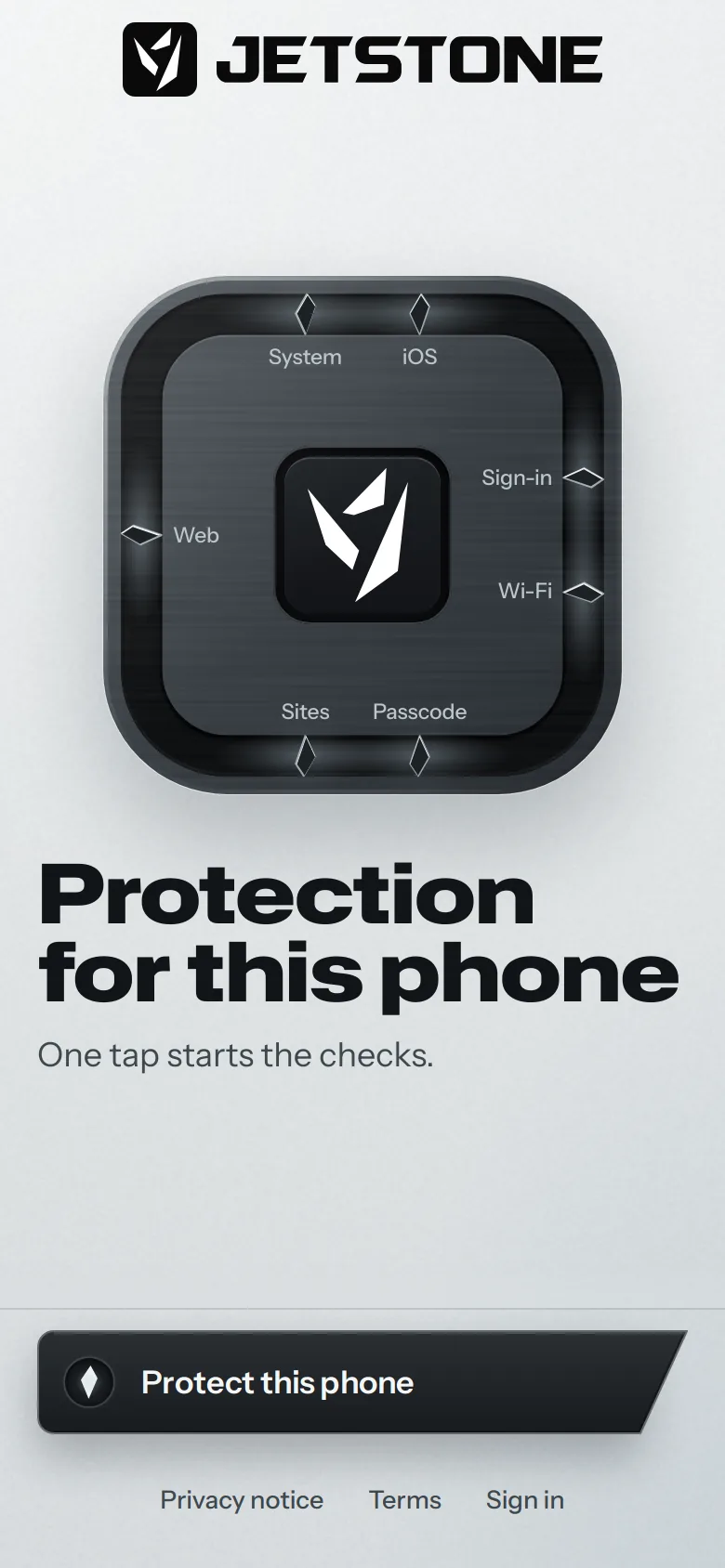
Jetstone opens on Protect this phone. No account is asked for first. - 2
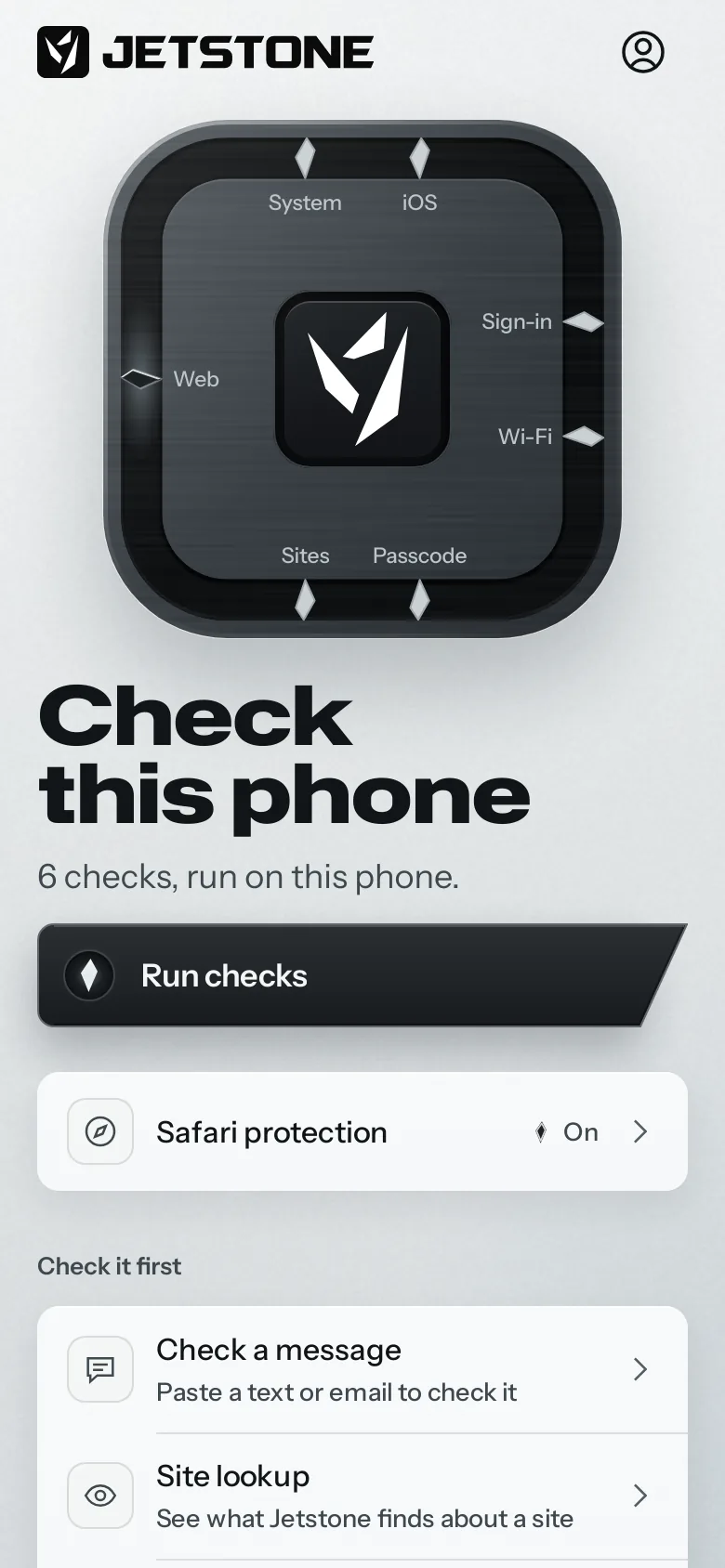
Home before the first checks: choose Run checks. - 3
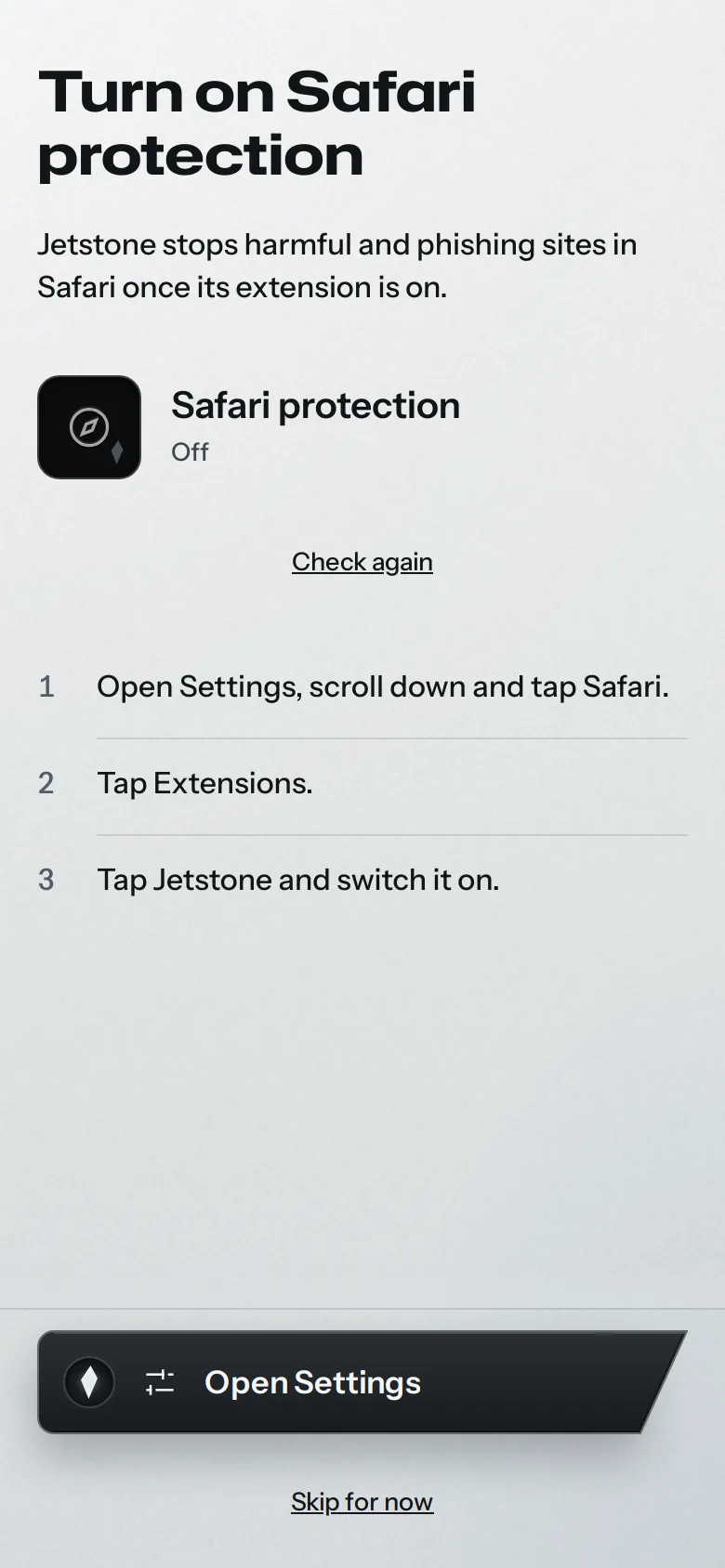
On iPhone, the app shows the steps that turn on Safari protection. - 4
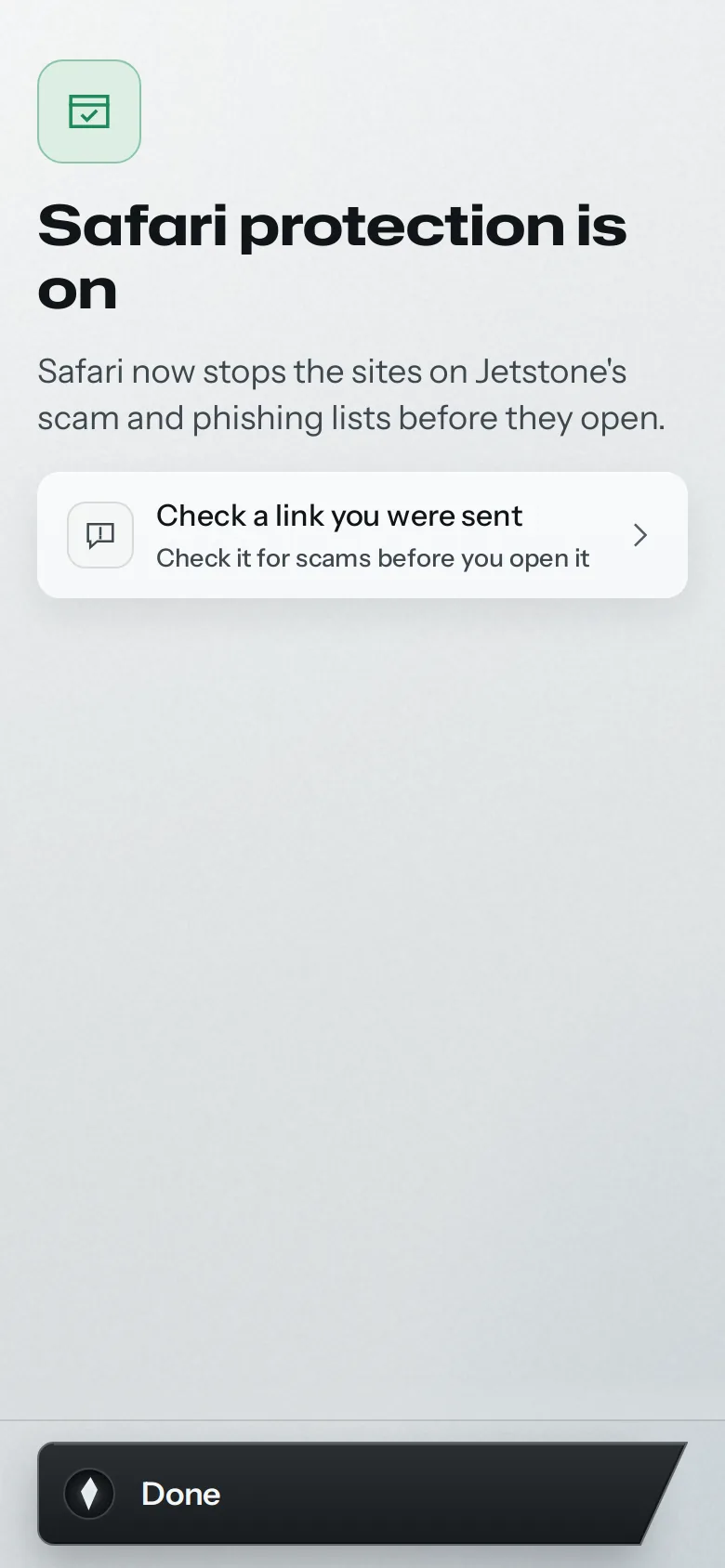
Safari protection on.
How to
Set up Jetstone on your phone
Turn on protection in a few minutes and see what Jetstone checks on your phone from the first day.
Jetstone protects your phone from dangerous sites, scams and unsafe settings. Setting it up takes a few minutes.
- Open Jetstone and choose Protect this phone.
- Follow the steps to turn on web and phishing protection. Your phone asks you to confirm each permission.
- Read the results of the first safety check and follow the guide beside anything marked for attention.
Jetstone asks for a permission only when a feature needs it, and each request says what the feature reads and what stays on your phone.
After setup
Open Protect to see every feature in your version of Jetstone and turn on the ones you want.
Web and phishing protection in Safari
Jetstone blocks phishing and malware sites in Safari on iPhone with a list that updates by itself.
Jetstone adds a content blocker to Safari. Safari checks each page against Jetstone's signed list of phishing and malware sites and stops a match before it loads.
Safari does the matching itself, so Jetstone never sees the sites you visit.
Turn it on
- Open Settings on your iPhone and choose Apps, then Safari.
- Choose Extensions.
- Turn on each Jetstone entry.
Open Jetstone afterwards to confirm web and phishing protection shows as on. The list updates in the background.
Web and phishing protection on Android
Jetstone stops dangerous sites in every app on your Android phone, and the decision is made on the phone.
Web and phishing protection checks the address of each site your phone looks up against Jetstone's signed list of phishing and malware sites. A match is stopped before the page opens, in any browser or app.
The check runs on your phone. The sites you visit are never sent to Jetstone.
Turn it on
- Open Jetstone and choose Web and phishing protection.
- Choose Turn on. Android asks you to allow a VPN connection. Choose OK.
Android shows a key icon while protection is on. Jetstone uses the phone's VPN slot to look at site addresses on the phone itself. Your traffic goes to the internet as usual.
Keep it running
In Android Settings, under Network and internet, then VPN, choose Jetstone and turn on Always-on VPN so protection starts with your phone.
More Jetstone tutorials
Everyday
The checks
What Jetstone checks on your phone, the Wi-Fi you join and your passwords, and how to fix what it finds.
Scams
Check a message
Paste a text, email or link you are unsure of and get a verdict with the signs Jetstone found.
Plans
Plans, the free trial and your subscription
How the free trial works, how to change or cancel your plan, and how to restore it on a new phone.