

Everyday
The checks
What Jetstone checks on your phone, the Wi-Fi you join and your passwords, and how to fix what it finds.
- 1
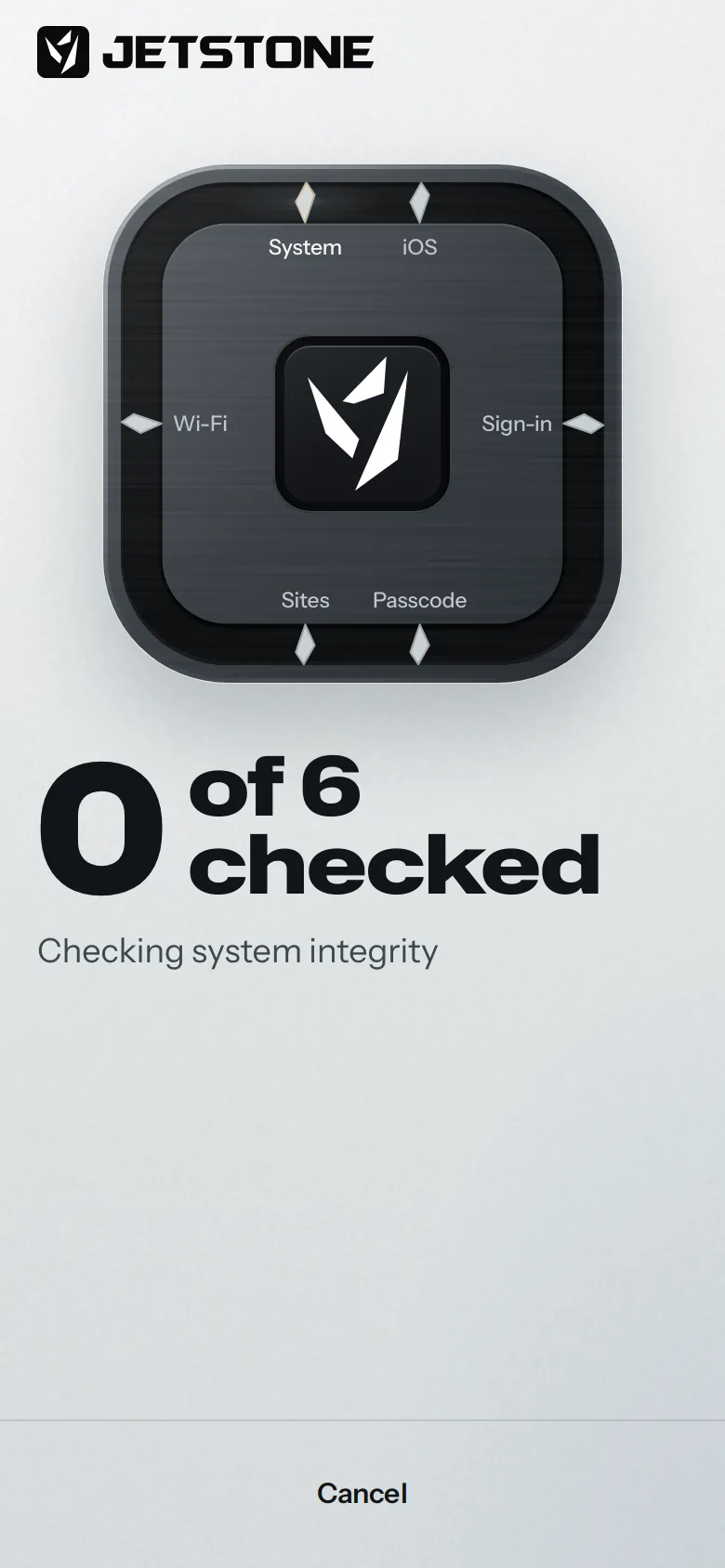
Each check answers on the phone as it runs. - 2
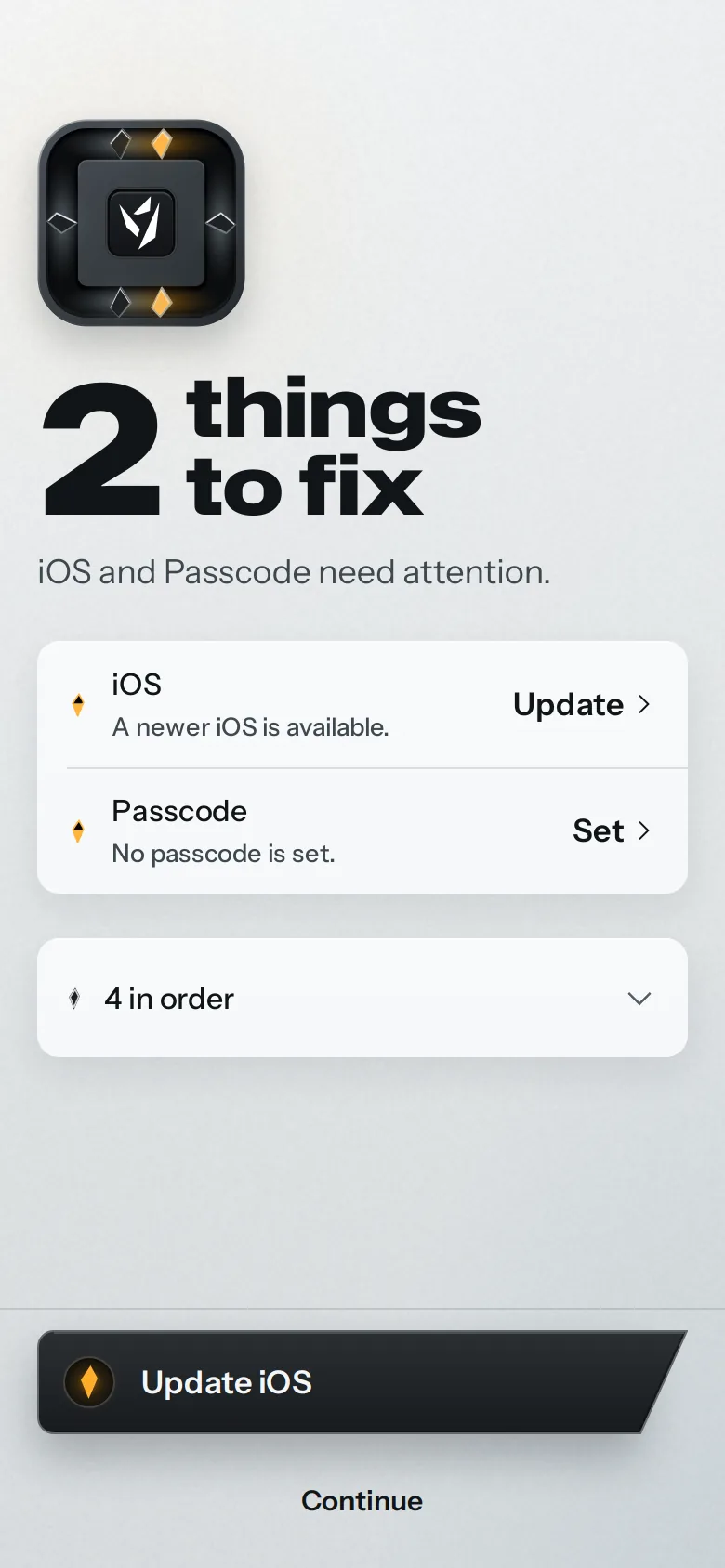
Each finding comes with the one step that fixes it. - 3
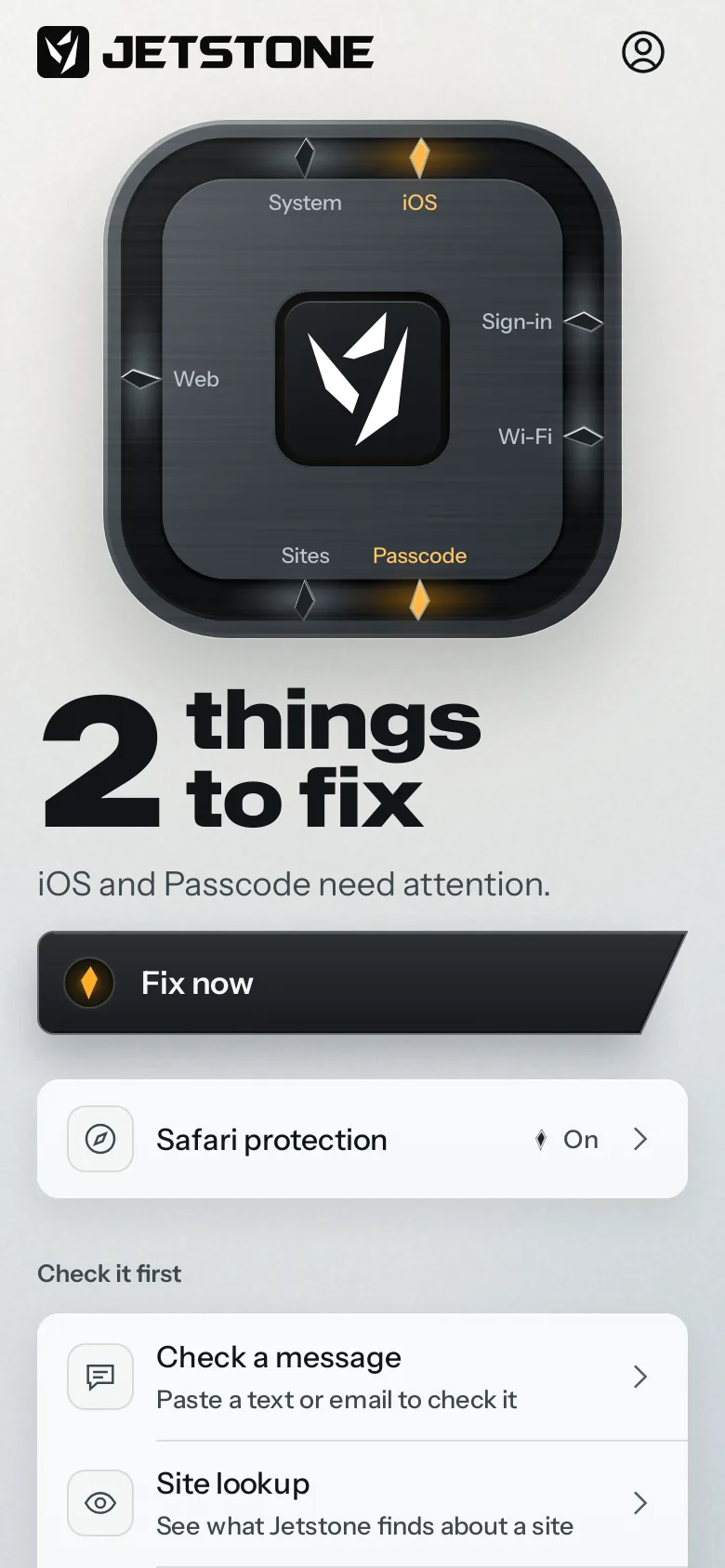
Home shows the verdict and the one action that matters now. - 4
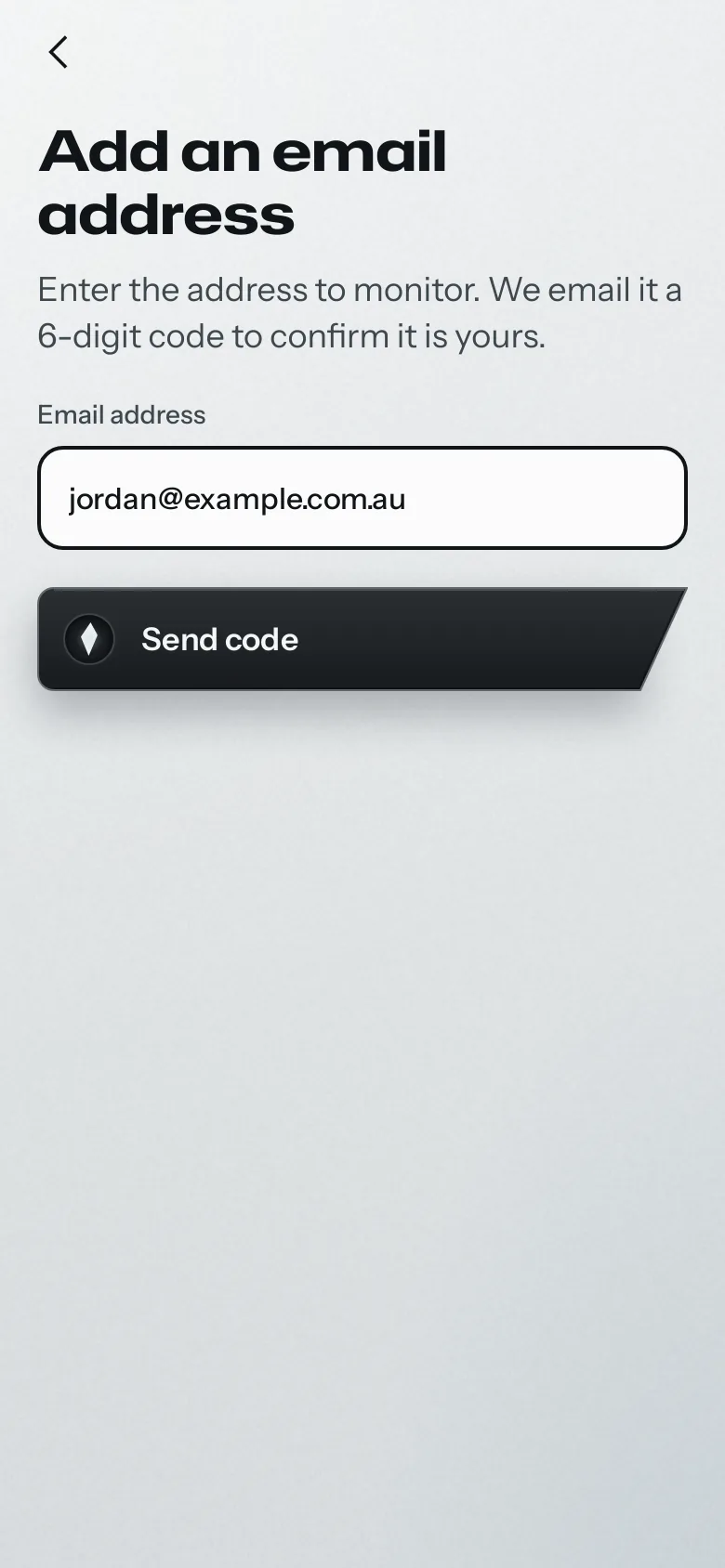
Add an email address for breach monitoring.
How to
Run a device safety check
Jetstone checks your phone's software version, screen lock and security settings and shows what to fix.
The device safety check looks at the settings that keep a phone safe:
- whether your phone's software is up to date
- whether a screen lock or passcode is set
- whether the phone's built-in protections have been removed
On AndroidOn Android it also checks that storage is encrypted and that developer options are off.
Run a check
Open Jetstone to see the result of each check, shown as clear or with a finding. Choose a finding to open its fix guide.
Check the Wi-Fi you are on
Jetstone tests the Wi-Fi network you have joined for signs that someone is reading or redirecting your traffic.
The Wi-Fi safety check runs three tests on the network you are connected to:
- whether a sign-in page stands between you and the internet
- whether something on the network is reading encrypted traffic
- whether site lookups are being changed on the way
The check needs no permission. Open Jetstone and run the Wi-Fi check.
If the check finds a problem
Leave the network and use mobile data for anything private, such as banking. The finding opens a guide with the next steps.
Check whether a password has been exposed
Find out whether a password appears in known data breaches. The password itself never leaves your phone.
A password that has appeared in a data breach is on lists scammers try first. Check yours without revealing it.
- Open Jetstone and choose Password check.
- Type the password and choose Check.
Your phone scrambles the password into a fingerprint and sends only its first five characters. Jetstone returns every breached fingerprint that starts the same way, and your phone looks for a match itself. The password and its full fingerprint stay on your phone.
If it has been exposed
Change it everywhere you use it, starting with email and banking, and use a different password for each account.
Monitor your email for data breaches
Add your email addresses and Jetstone tells you when one appears in a known data breach.
When a company you use is breached, your email address and other details can be exposed. Jetstone watches for your addresses in known breaches.
- Open Jetstone and choose Protect, then Email breach monitoring.
- Type your email address.
- Enter the 6-digit code Jetstone sends to that address.
You can monitor up to 10 addresses. For each breach, Jetstone shows what kind of data was exposed and what to do, starting with changing that account's password.
More Jetstone tutorials
First run
Protect this phone
Install Jetstone, run the first checks and turn on web protection, in the order the app asks.
Scams
Check a message
Paste a text, email or link you are unsure of and get a verdict with the signs Jetstone found.
Plans
Plans, the free trial and your subscription
How the free trial works, how to change or cancel your plan, and how to restore it on a new phone.